Office chair uncomfortable after a few hours? The problem may not be the chair itself.
An uncomfortable office chair after a few hours can be frustrating, but the chair itself may not always be the problem.
Sometimes it is.
But often, discomfort comes from something much simpler: the seat depth may not fit your legs, your chair may be too high for your desk, the lumbar support may be in the wrong position, or your entire workstation may be forcing you into an awkward posture.
And there is another possibility: you may simply be sitting in the same position for too long.
Before spending money on another office chair, it is worth figuring out where the discomfort starts and why.
This guide walks through seven common causes and gives you a simple process:
Diagnose → Adjust → Reassess → Replace only if necessary.
Before You Blame the Chair: Find Where the Discomfort Starts
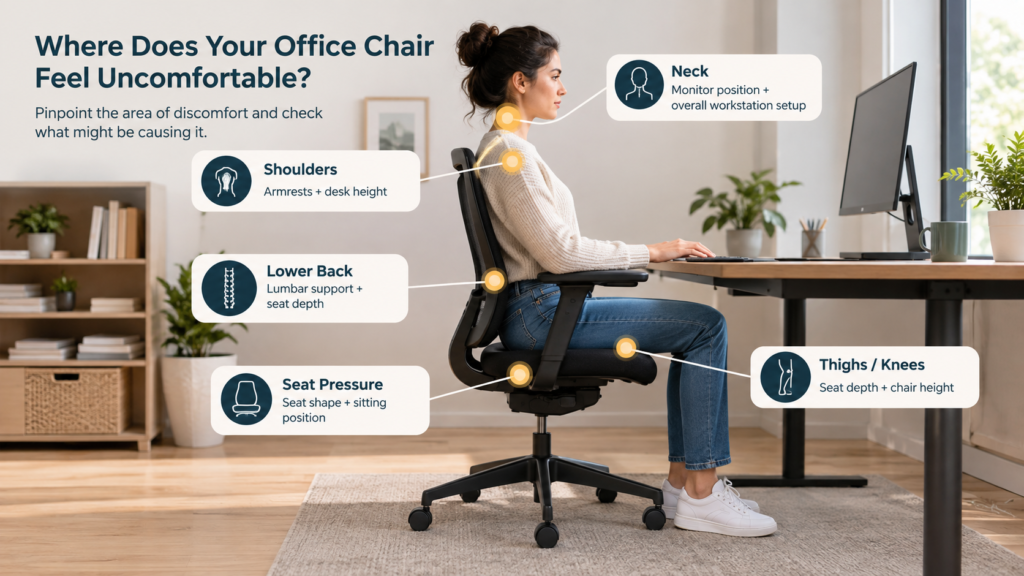
Before changing your chair, first identify where you actually feel uncomfortable. The location of the discomfort can give you a useful clue about what to check.
Lower back → Lumbar support + seat depth
Thighs or behind the knees → Seat depth + chair height
Buttocks or tailbone → Seat pressure + sitting position
Shoulders or upper back → Armrests + desk height
Neck → Monitor position + overall workstation setup
1. Your Seat Depth Doesn’t Fit Your Legs
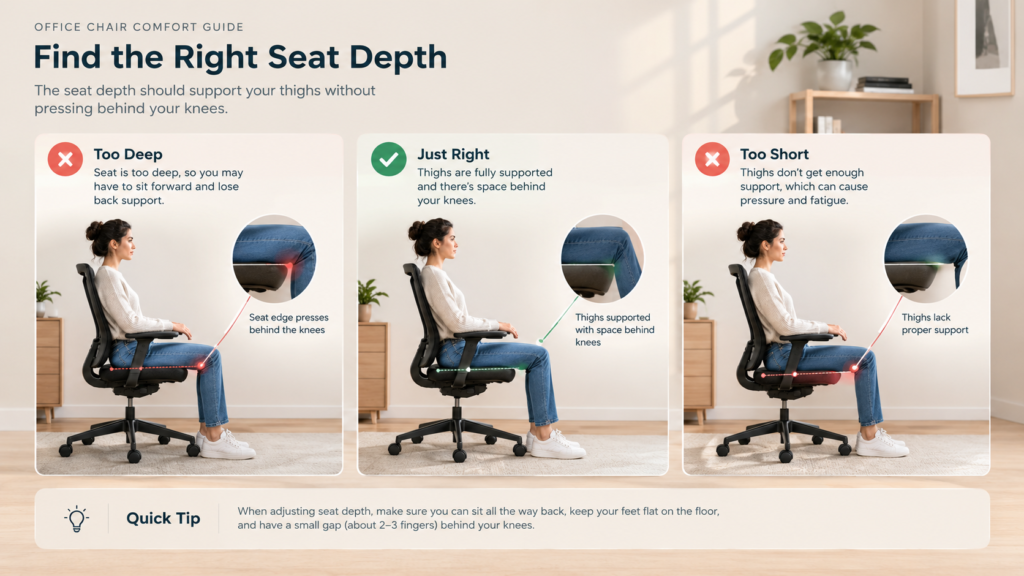
Seat depth is one of the easiest office-chair adjustments to overlook.
If the seat is too deep for your legs, you may have to sit farther forward to use the backrest properly. If it is too short, your thighs may not receive enough support.
Neither situation is ideal for long periods of work.
Quick Check
Sit all the way back in the chair and place your feet flat on the floor. You should be able to use the backrest without the front edge of the seat pressing into the area behind your knees.
How to Fix It
If your chair has an adjustable seat pan, try moving it forward or backward until the seat supports your thighs without restricting the area behind your knees.
If your chair does not offer seat-depth adjustment, changing the chair’s position or considering a better-fitting chair may be more practical than trying to force your body to adapt to it.
2. Your Chair Height Doesn’t Match Your Desk
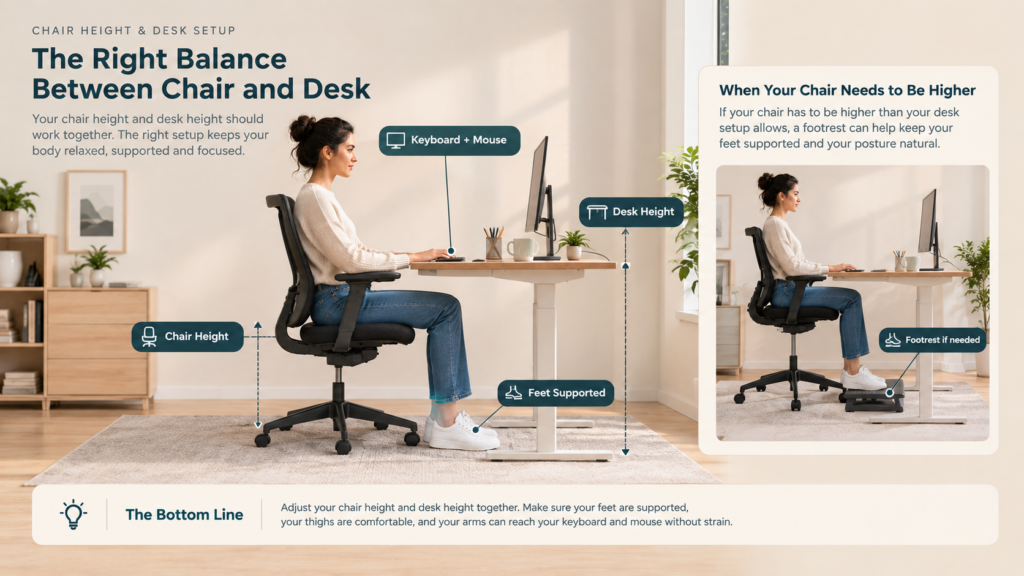
Your chair height affects more than just your legs. It also changes how your arms, shoulders, and upper body relate to your desk.
If your chair is too low, you may end up reaching upward toward the desk. If it is too high, your feet may lose proper support or you may feel pressure under your thighs.
The goal is to find a position where your feet are supported and your work surface feels natural to use.
Quick Check
Sit normally with your feet supported. Your thighs should feel supported by the seat without pressure from the front edge, while your arms should be able to reach the keyboard and mouse without your shoulders having to stay raised.
How to Fix It
Start by adjusting the chair height so your feet are comfortably supported. Then check your relationship with the desk rather than adjusting the chair in isolation.
If your desk cannot be lowered and you need to keep the chair higher for comfortable keyboard and mouse use, a footrest can help provide support for your feet.
A footrest may help if your desk requires you to keep your chair higher than your feet can comfortably reach the floor.
3. Your Lumbar Support Is in the Wrong Place
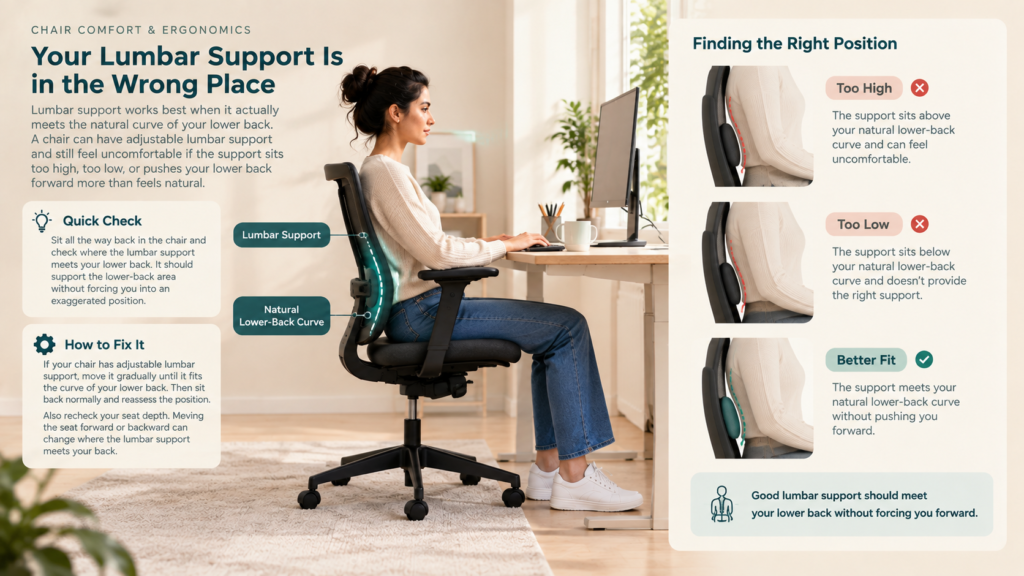
Lumbar support works best when it actually meets the natural curve of your lower back. A chair can have adjustable lumbar support and still feel uncomfortable if the support sits too high, too low, or pushes your lower back forward more than feels natural.
If you find yourself sliding forward to avoid the lumbar support, or your lower back is not making contact with it when you sit back, the adjustment may be part of the problem.
Quick Check
Sit all the way back in the chair and check where the lumbar support meets your lower back. It should support the lower-back area without forcing you into an exaggerated position.
How to Fix It
If your chair has adjustable lumbar support, move it gradually until it fits the curve of your lower back. Then sit back normally and reassess the position.
Also recheck your seat depth. Moving the seat forward or backward can change where the lumbar support meets your back.
If your chair’s built-in lumbar support doesn’t fit your lower back well, a removable lumbar support cushion can be a simple option to try.
View Lumbar on Amazon
4. Your Seat Cushion Isn’t Distributing Pressure Well
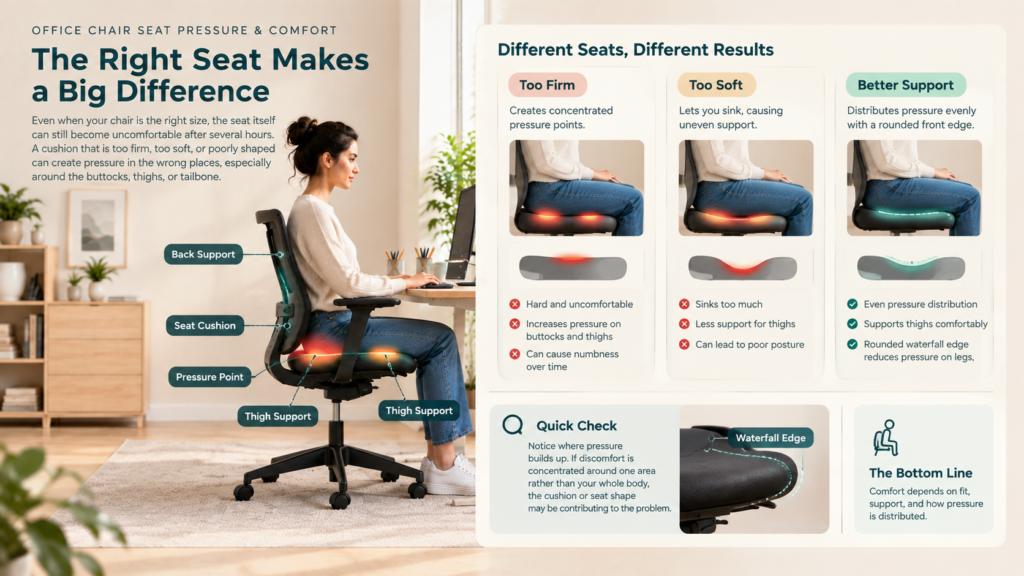
Even when your chair is the right size, the seat itself can still become uncomfortable after several hours. A cushion that is too firm, too soft, or poorly shaped can create pressure in the wrong places, especially around the buttocks, thighs, or tailbone.
The problem can also become more noticeable over time. A seat may feel comfortable for the first 30 minutes but become uncomfortable once you’ve been sitting on it for several hours.
Quick Check
Notice where the pressure builds up. If discomfort is concentrated around one area of the seat rather than your whole body feeling unsupported, the cushion or seat shape may be contributing to the problem.
How to Fix It
First, make sure your seat depth and height are already adjusted correctly. Then try changing your sitting position slightly rather than staying in exactly the same position for hours.
If the chair still creates noticeable pressure in the same area, a different seat cushion or a chair with a better-fitting seat design may be worth considering.
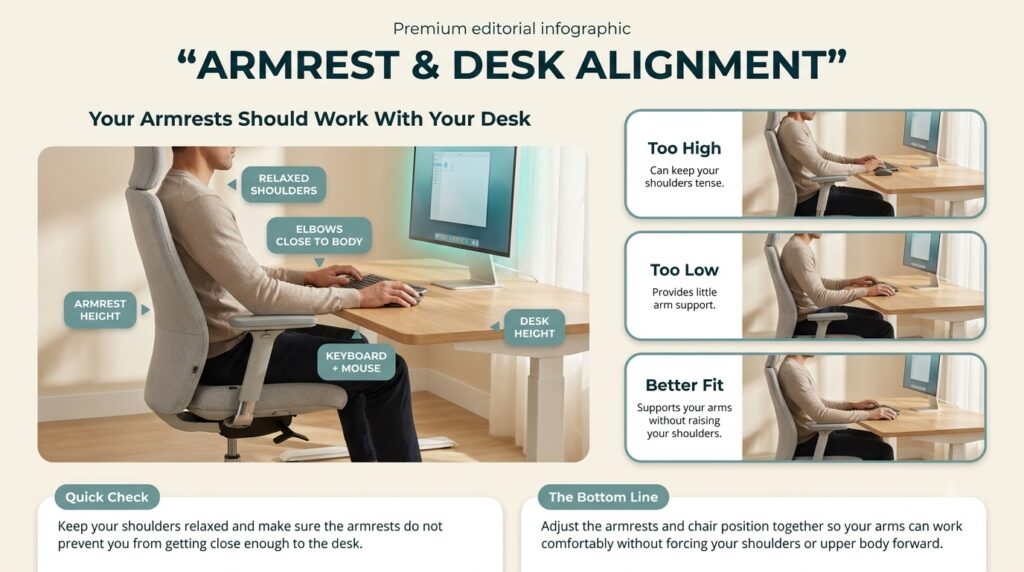
5. Your Armrests Don’t Match Your Desk
Armrests can make a chair feel more comfortable, but only when they work with your desk and your natural sitting position.
If your armrests are too high, your shoulders may stay raised. If they are too low, your arms may lose support. And if they are too wide or prevent you from moving the chair close enough to the desk, you may end up reaching forward to use your keyboard and mouse.
This can make an otherwise comfortable chair feel much worse after several hours.
Quick Check
Sit normally with your shoulders relaxed and your elbows close to your body. Your armrests should support your forearms without forcing your shoulders upward or preventing you from getting close enough to your desk.
How to Fix It
If your armrests are adjustable, lower or raise them gradually until your shoulders can stay relaxed while your forearms receive comfortable support.
Then move your chair toward the desk and check whether the armrests interfere with the desk. If they prevent you from getting close enough, lowering, moving, or removing the armrests may be a better solution.
6. Your Desk Setup Is Making the Chair Feel Worse
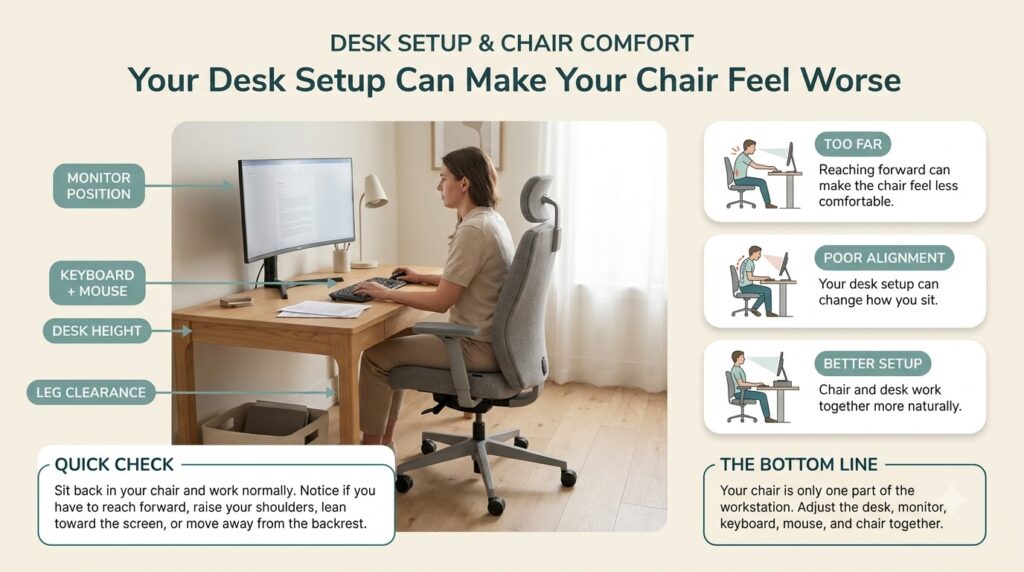
You can have a well-adjusted office chair and still feel uncomfortable if the rest of your workstation is working against it.
A well-planned home office setup can also make it easier to position your desk, monitor, keyboard, and chair together.15 Home Office Essentials for Maximum Productivity
A desk that is too high, a monitor that is poorly positioned, or a keyboard and mouse that sit too far away can change the way you sit. You may start reaching forward, lifting your shoulders, moving away from the backrest, or twisting your body to see or reach something.
Over several hours, those small adjustments can make a comfortable chair feel uncomfortable.
That’s why it’s worth checking your desk setup before deciding that the chair itself is the problem.
Quick Check
Sit all the way back in your chair and use your workstation normally for a few minutes.Notice whether
you have to
- Reach forward to use the keyboard or mouse
- Raise your shoulders while typing
- Lean toward the monitor to read
- Twist your head or body because the screen is off to one side
- Move away from the backrest to work comfortably
- Keep your legs or feet restricted by items under the desk
If any of these happen, the problem may be the relationship between your chair and workstation—not the chair alone.
How to Fix It
Start with the components you use most.
1. Bring the keyboard and mouse into a comfortable working position.
They should be close enough that you don’t have to repeatedly reach forward or out to the side.
2. Check your monitor position.
Keep the main monitor directly in front of you and positioned so you can view it without leaning forward or tilting your head awkwardly.
If you’re working in a small room, these adjustments can be especially important because limited space can make it harder to position your chair and desk comfortably.15 Smart Small Home Office Ideas to
3. Check the space underneath your desk.
Make sure cables, storage boxes, drawers, or other objects aren’t restricting your legs or preventing you from positioning your chair properly.
4. Recheck the chair after adjusting the desk setup.
Once the keyboard, mouse, monitor, and leg clearance are in a better position, sit back in the chair and reassess how it feels.
The goal isn’t to find one perfect setup. It’s to create a workstation that lets your chair and desk work together instead of forcing your body to compensate for them.
7. You’re Sitting in One Position for Too Long
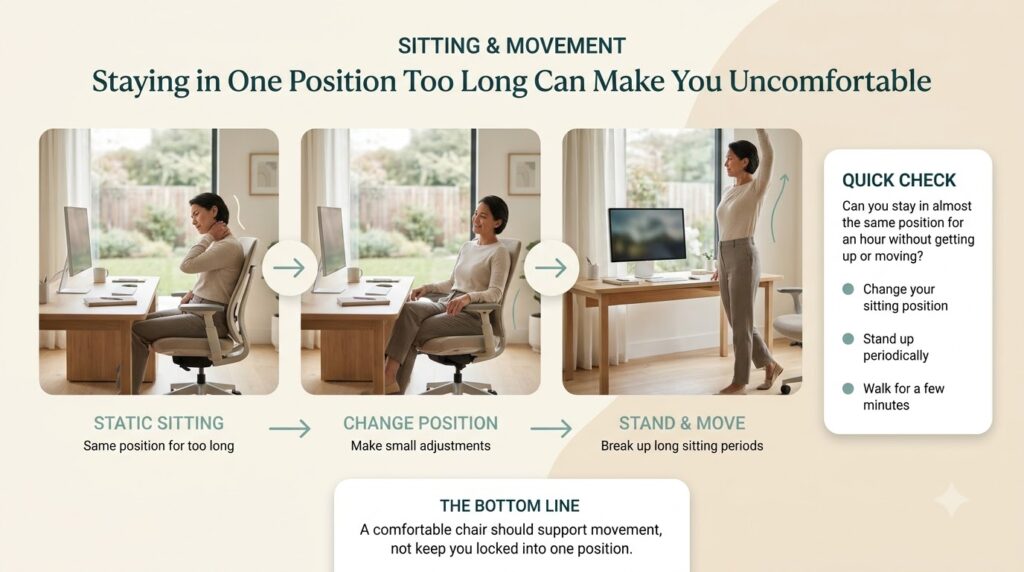
If your office chair is uncomfortable after a few hours, prolonged static sitting may be part of the problem.
Even if your seat depth, height, lumbar support, and desk setup are properly adjusted, staying in almost the same position for several hours can still leave you feeling uncomfortable.
When you work at a computer, it’s easy to become absorbed in what you’re doing and barely move. Your shoulders stay in one position, your back stays against the same part of the chair, and your legs remain in roughly the same position for a long stretch of time.
The result can be stiffness, fatigue, or a general feeling that your chair has become uncomfortable.
That’s why chair comfort isn’t only about finding the perfect sitting position. It’s also about changing positions regularly. OSHA recommends making small adjustments, standing and walking periodically, and varying activities rather than remaining in one posture for prolonged periods.
Quick Check
Try paying attention to how often you actually move while working.
If you realize that you can sit in almost the exact same position for an hour or more without getting up or changing posture, prolonged static sitting may be contributing to your discomfort.
Ask yourself:
- Do I stay in the same sitting position for long stretches?
- Do I rarely adjust my backrest or sitting position?
- Do I stay at the desk continuously without standing?
- Does discomfort improve when I get up and move around?
How to Fix It
You don’t need to force yourself into one “perfect” sitting position all day.
Instead, build more movement into your normal work routine.
Change your sitting position.
Make small adjustments to your chair or backrest throughout the day rather than keeping your body completely static.
Stand up periodically.
When your task allows it, get out of the chair and stand or walk for a few minutes.
Vary your work.
Mix computer tasks with activities that naturally change your position, such as reading, making a phone call, or handling something away from the computer.
Take short movement breaks.
Short, regular breaks can give your muscles an opportunity to recover. CDC/NIOSH notes that taking short breaks every hour can help reduce discomfort among computer workers.
The goal isn’t to avoid sitting completely. It’s to avoid spending hour after hour in exactly the same position.
Office Chair Uncomfortable After a Few Hours? Start Here
Before you decide that your office chair needs to be replaced, take five minutes to check the way your chair and workstation are working together. A few minutes of checking your office chair can help you identify whether the problem is the chair itself or the way it is adjusted.
You don’t need to change everything at once. Go through these seven checks one by one, make a small adjustment when necessary, and then reassess how the setup feels.
1. Check Your Seat Depth
Sit all the way back in the chair. Make sure the seat supports your thighs without pressing against the area behind your knees.
If not: Adjust the seat depth or consider whether the chair’s seat is simply a poor fit for your legs.
2. Check Your Chair Height
Make sure your feet are comfortably supported while your arms can reach the keyboard and mouse without your shoulders staying raised.
If not: Adjust the chair height and then reassess your relationship with the desk. If the chair needs to stay higher, a stable footrest may help support your feet.
3. Check Your Lumbar Support
Sit back normally and check whether the backrest or lumbar support actually meets your lower back.
If not: Adjust its height or position, if possible, and check your seat depth again.
4. Check Where Pressure Builds Up
Notice whether discomfort is concentrated around your buttocks, tailbone, thighs, or the front edge of the seat.
If it is: Recheck your seat height and depth first. If the same pressure remains after proper adjustment, the seat design itself may not suit you.
5. Check Your Armrests
Your shoulders should be relaxed and your elbows should stay close to your body while you work.
If not: Adjust the armrests or check whether they are preventing you from getting close enough to the desk.
6. Check Your Desk Setup
Look at your monitor, keyboard, mouse, and leg clearance together.
You shouldn’t need to repeatedly reach forward, twist toward the monitor, raise your shoulders, or move away from the backrest just to work comfortably.
7. Check How Long You Stay Still
Finally, ask yourself how often you actually change position or get up while working.
Even a well-adjusted workstation should allow you to change posture and move regularly rather than keeping you in one position for hours.
Your Quick Result
If one or two areas feel wrong:
Start with small adjustments before considering a new chair.
If several areas feel wrong:
Your chair and workstation may need to be adjusted together.
If everything is adjusted correctly but the chair still creates the same discomfort:
It may simply be a poor fit for your body or working style.
Final takeaway
Don’t replace the chair before you diagnose the problem.
A few small adjustments can sometimes make a bigger difference than buying another chair.
When Should You Replace Your Office Chair?
If you’ve gone through the adjustments above and your chair still feels uncomfortable, that doesn’t automatically mean you need a new one.
Before replacing your office chair, make sure you’ve given the existing setup a fair chance through proper adjustment.
An uncomfortable office chair can sometimes be fixed with better adjustments before you decide to replace it.
If your office chair is uncomfortable after a few hours even after proper adjustments, the chair may simply be a poor fit for your body or working style.
A chair may simply need a better adjustment, a replacement part, or a change to the surrounding workstation. But if the chair consistently fails to support your body even after proper adjustment, replacing it can make more sense.
The key is to diagnose the problem before spending money.
Replace Your Chair If the Fit Is Fundamentally Wrong
Some problems cannot be solved with better positioning.
For example, if the seat is consistently too deep for your legs, the lumbar support cannot reach your lower back properly, or the armrests cannot be adjusted without interfering with your desk, the chair may simply be the wrong size or design for you.
A chair with greater adjustability can provide a better fit for different body sizes and sitting positions. OSHA also recommends trying a chair for comfort and fit before purchasing when possible.
Consider Repairing It If the Chair Is Otherwise a Good Fit
Don’t replace a chair just because one component has started causing problems.
If the chair fits you well but a caster, cushion, armrest, or another replaceable component has worn out, repairing that part may be more practical than replacing the entire chair.
The important question is:
Is the chair itself the problem—or is one component failing?
Replace It If the Same Discomfort Remains
After you’ve:
- Adjusted the seat depth
- Set the chair height
- Positioned the lumbar support
- Checked the armrests
- Rechecked your desk setup
- Started changing positions regularly
…and the same discomfort keeps returning, the chair may simply be a poor match for your body or working style.
At that point, buying a better-fitting chair can be more sensible than constantly trying to compensate for a design that doesn’t work for you.
A Simple Adjust vs. Replace Test
Keep and Adjust the Chair If:
✓ The chair generally fits your body
✓ Most discomfort improves after adjustments
✓ The chair still provides good back and seat support
✓ The problem appears to come from your desk or workstation
✓ A small component is the main thing that has failed
Consider Replacing the Chair If:
✕ The seat depth never feels right
✕ You cannot get proper lumbar support
✕ The armrests cannot be positioned comfortably
✕ The seat creates persistent pressure even after adjustment
✕ The chair no longer provides adequate support
✕ The same discomfort keeps returning despite a properly adjusted setup
The goal isn’t to find the most expensive chair. It’s to find one that actually fits you and works with your workstation.
If You Do Need a New Chair
If your current chair fails the fit test, look for adjustability rather than marketing claims.
Useful features include adjustable seat depth, adjustable seat height, lumbar support that can be positioned to fit your lower back, and armrests that can be adjusted without interfering with your desk. OSHA’s purchasing guidance also recommends considering adjustability and trying a chair for comfort and fit before purchasing when possible
One option worth considering is the HON Ignition Mid-Back Adjustable Lumbar Office Chair if you want a chair with several adjustable features rather than a basic fixed-design office chair.
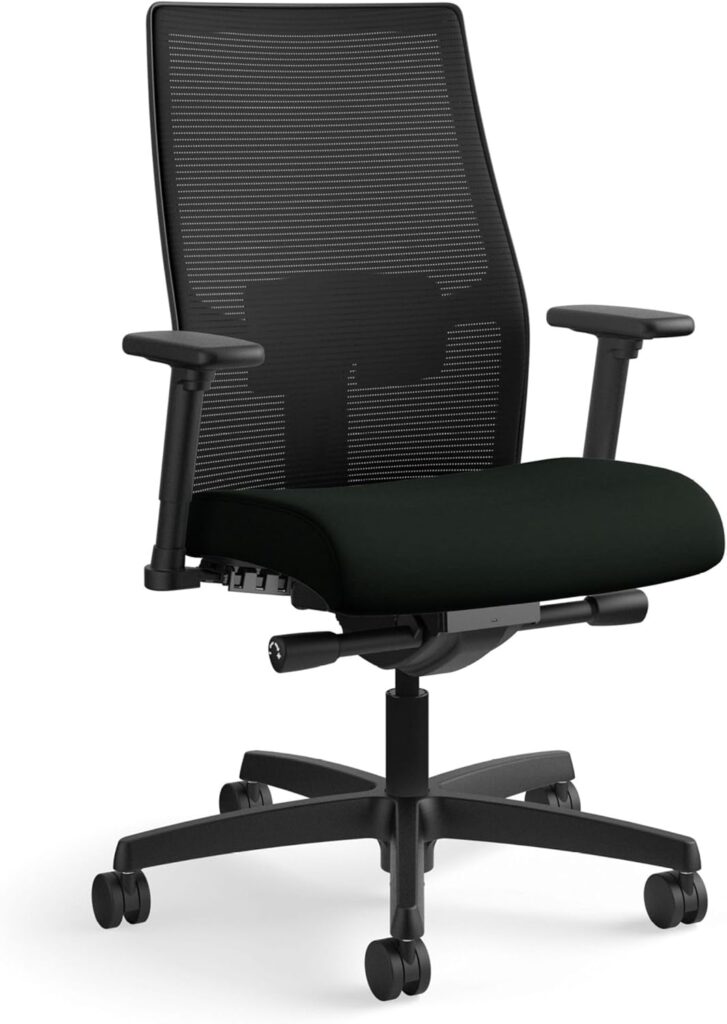
Important: This isn’t a guarantee that the chair will be comfortable for everyone. Chair fit is personal, so check the dimensions, adjustment range, and return policy before buying.
Bottom Line
Don’t replace an uncomfortable office chair simply because it feels uncomfortable.
First, find where the discomfort starts, adjust the chair and workstation, and give your setup another chance.
If the chair still doesn’t fit your body after those adjustments, that’s when replacing it starts to make sense.
A better chair isn’t necessarily the most expensive chair—it’s the one that gives you the right fit, support, and adjustability for the way you actually work.
Final Takeaway
If your office chair is uncomfortable after a few hours, that doesn’t always mean you need a new chair.
Sometimes the problem is a simple adjustment. Sometimes it’s the relationship between your chair and desk. And sometimes, despite making the right adjustments, the chair simply isn’t a good fit for your body.
That’s why the best approach is to diagnose before you replace.
Check your seat depth, chair height, lumbar support, armrests, desk setup, and how often you change position throughout the day. Then make one adjustment at a time and reassess.
If the discomfort improves, you’ve probably found part of the problem.
If it doesn’t, and the same issues continue despite a properly adjusted workstation, replacing the chair may be the more practical choice.
The right office chair isn’t just aboutfeeling comfortable when you first sit down It’s about finding a setup that supports you throughout the way you actually work.